Import your fill-ups from a spreadsheet

Bring an old gas log from Excel, Numbers or Google Sheets into EngineMiles instead of typing it in again.

By EngineMiles · Updated · 3 min read

On this page
  1. Template and example
  2. Set up your sheet
  3. Two things to get right
  4. Save it as CSV
  5. Get it onto your iPhone
  6. Import it
  7. If rows won’t import
  8. Still stuck?

One row per fill-up, column names in row 1, saved as CSV. The preview is free; importing needs Pro.

Set up your sheet
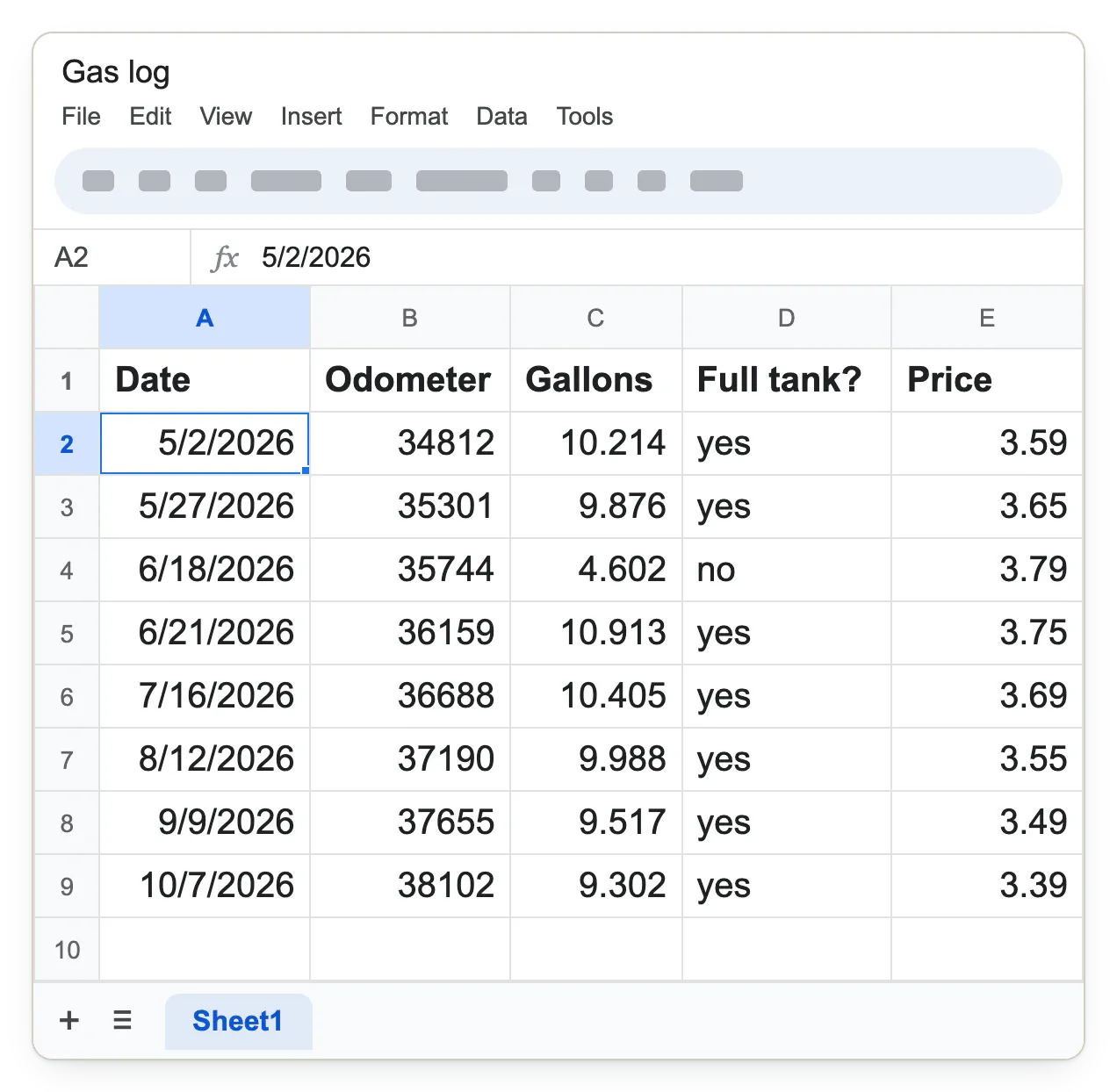
A spreadsheet in Google Sheets named Gas log. Row 1 holds the column names Date, Odometer, Gallons, Full tank? and Price. Rows 2 to 9 hold eight fill-ups, from 5/2/2026, 34812, 10.214, yes, 3.59 to 10/7/2026, 38102, 9.302, yes, 3.39. The fill-up on 6/18/2026 says no under Full tank?.
Google Sheets. One row per fill-up; Date, Odometer and Gallons are required.
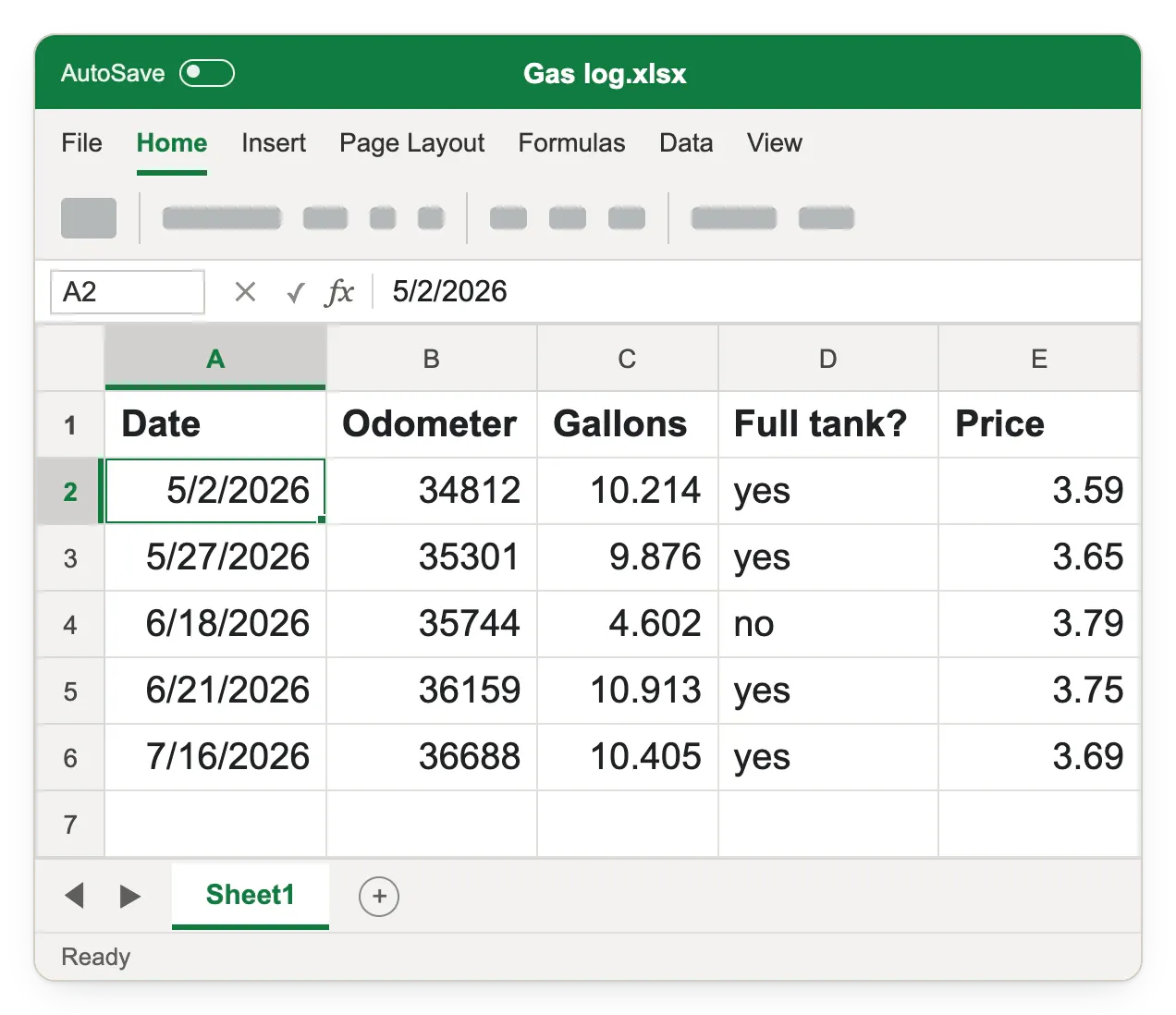
The same gas log in Excel, Sheet1: Date, Odometer, Gallons, Full tank? and Price in row 1, then five fill-ups starting 5/2/2026, 34812, 10.214, yes, 3.59.
Excel. Type no under Full tank? for a partial fill; price is optional.

Kilometers or liters? Put the unit in the name, like Odometer (km).

Two things to get right
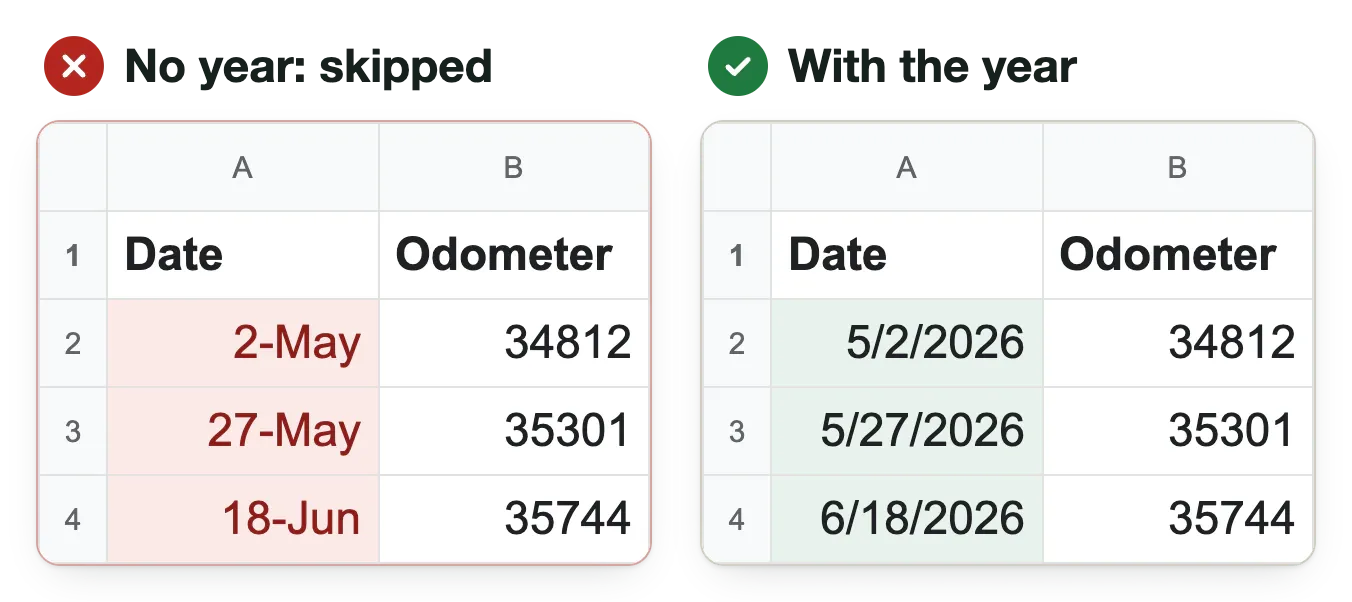
Two spreadsheet snippets. Left, marked No year, skipped: dates 2-May, 27-May and 18-Jun. Right, marked With the year: 5/2/2026, 5/27/2026 and 6/18/2026.
Excel shows 2-May? Format Cells › Date, pick a style with the year.
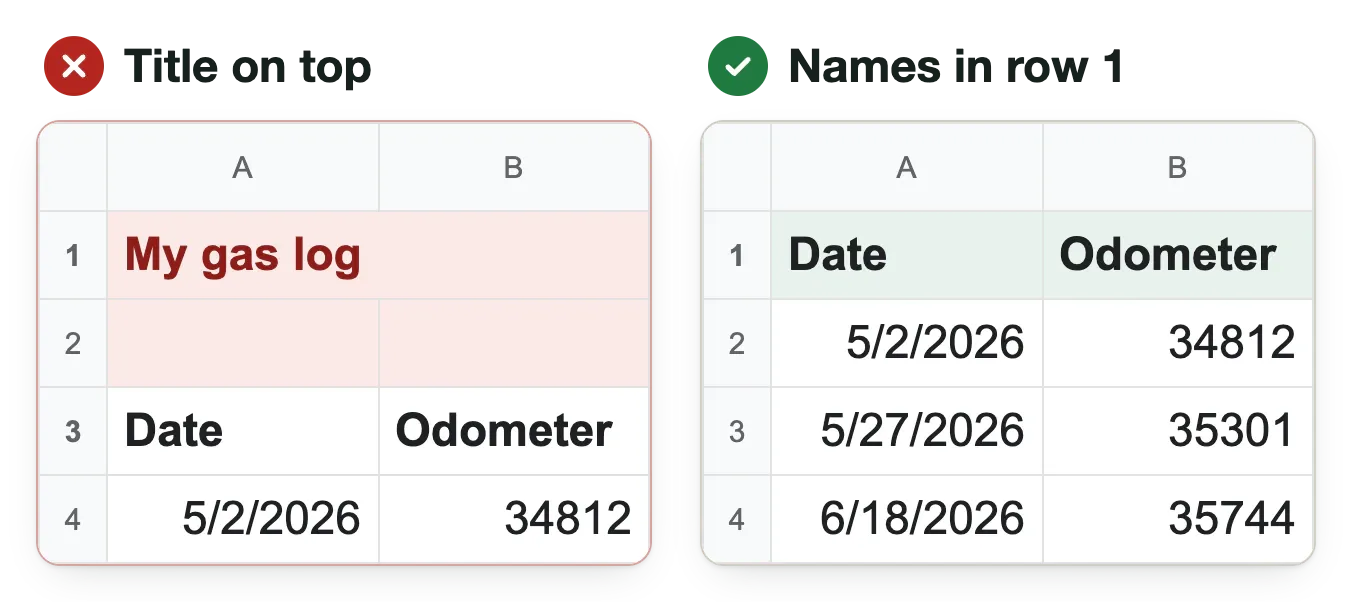
Two spreadsheet snippets. Left, marked Title on top: My gas log in row 1, a blank row 2, and the column names in row 3. Right, marked Names in row 1: Date and Odometer in row 1 with fill-ups below.
Delete any title or blank rows above the column names.

Save it as CSV

Save as CSV, not .xlsx or .numbers.
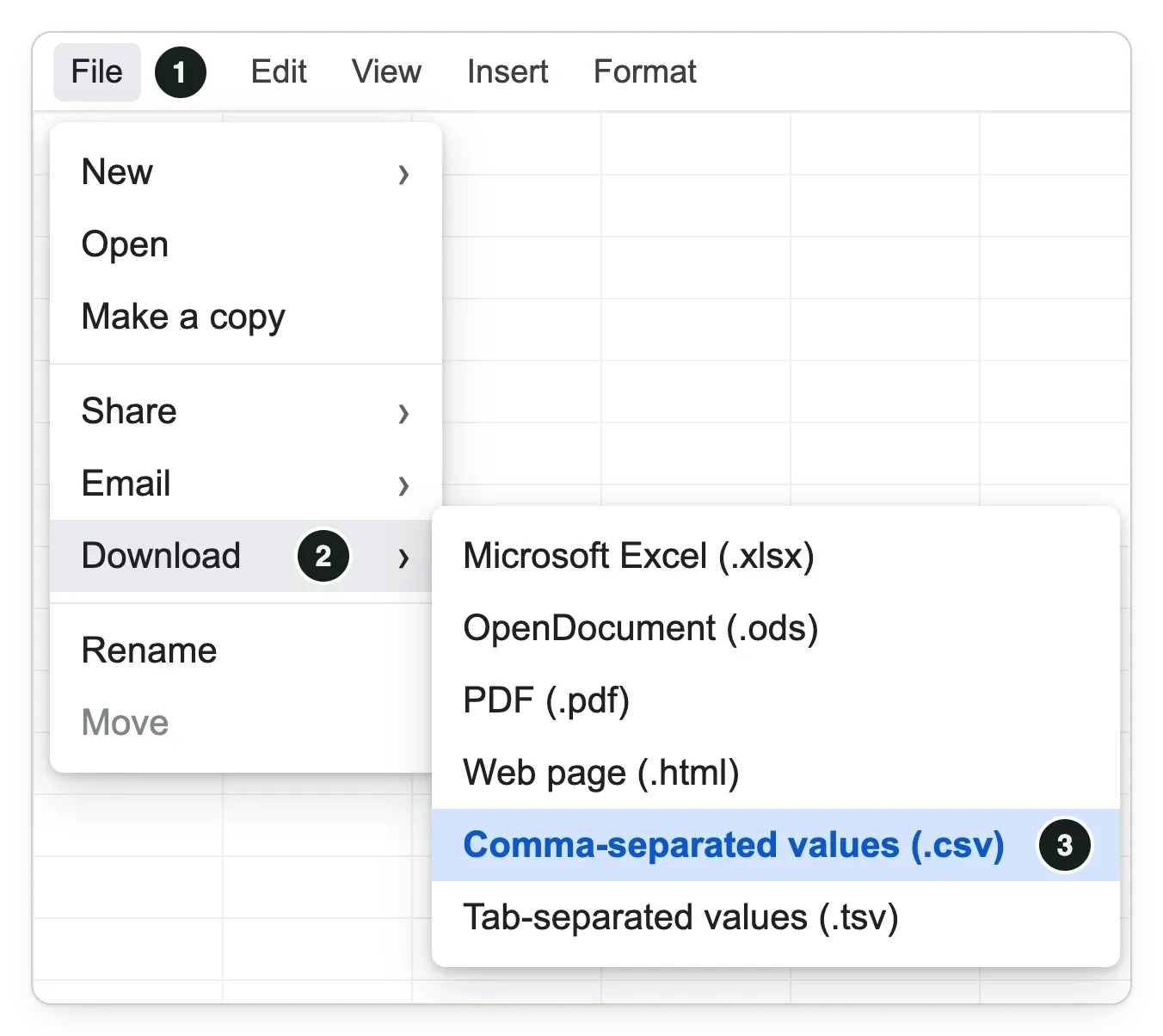
Google Sheets menus: File, then Download, then Comma-separated values (.csv), highlighted and numbered 1, 2, 3.
Google Sheets: File › Download › Comma-separated values (.csv)
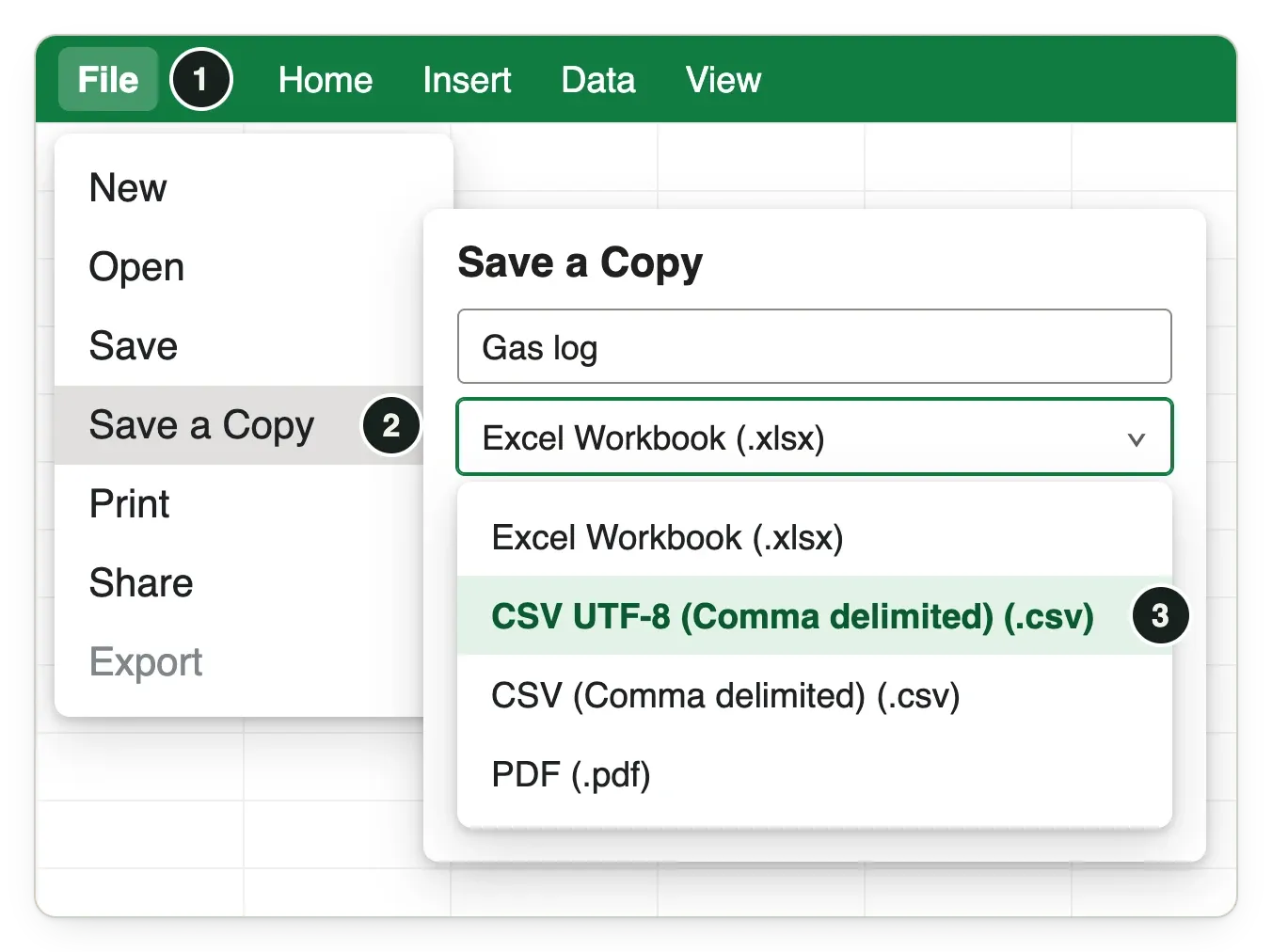
Excel: File, then Save a Copy, then the file-type list opened with CSV UTF-8 (Comma delimited) (.csv) highlighted, numbered 1, 2, 3.
Excel: File › Save a Copy, then pick CSV UTF-8 in the file-type list. Older Excel says Save As.
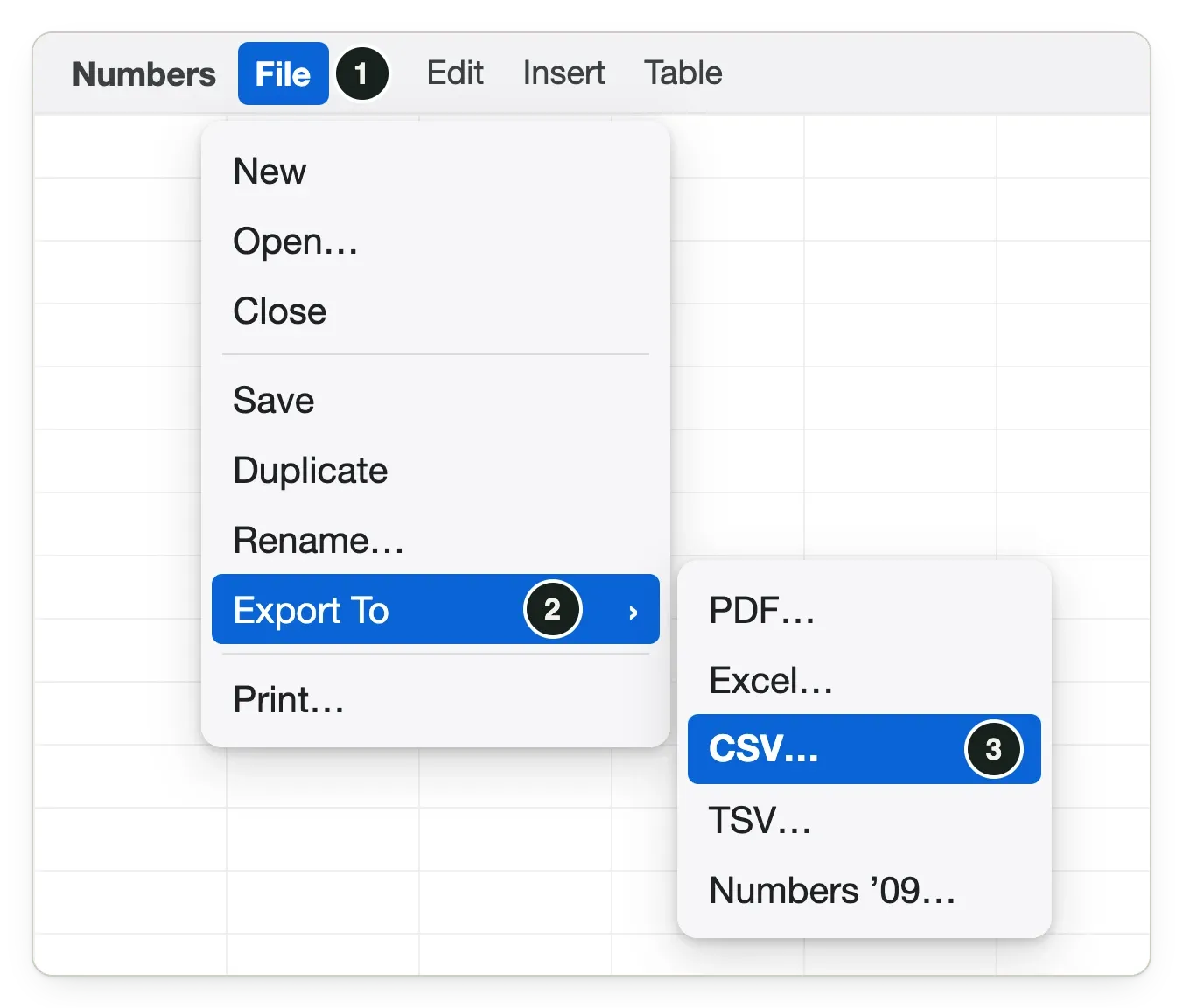
Numbers menus on a Mac: File, then Export To, then CSV… among PDF, Excel, TSV and Numbers ’09, highlighted and numbered 1, 2, 3.
Numbers: File › Export To › CSV

Get it onto your iPhone

AirDrop it, put it in iCloud Drive, or email it to yourself and tap Save to Files.

Import it

  1. Settings › Your data › Import from a spreadsheet.
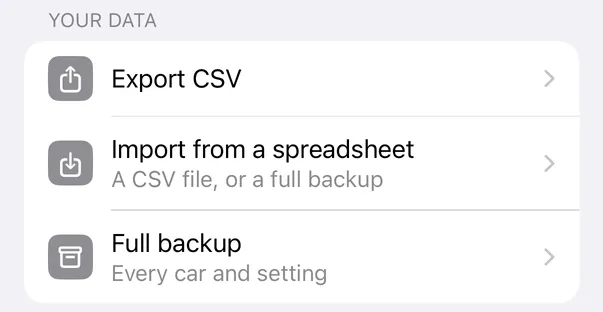
    The Your data section of Settings: Export CSV, Import from a spreadsheet (A CSV file, or a full backup), and Full backup.
  2. Tap Choose a file. Greyed out? It isn’t a CSV yet.
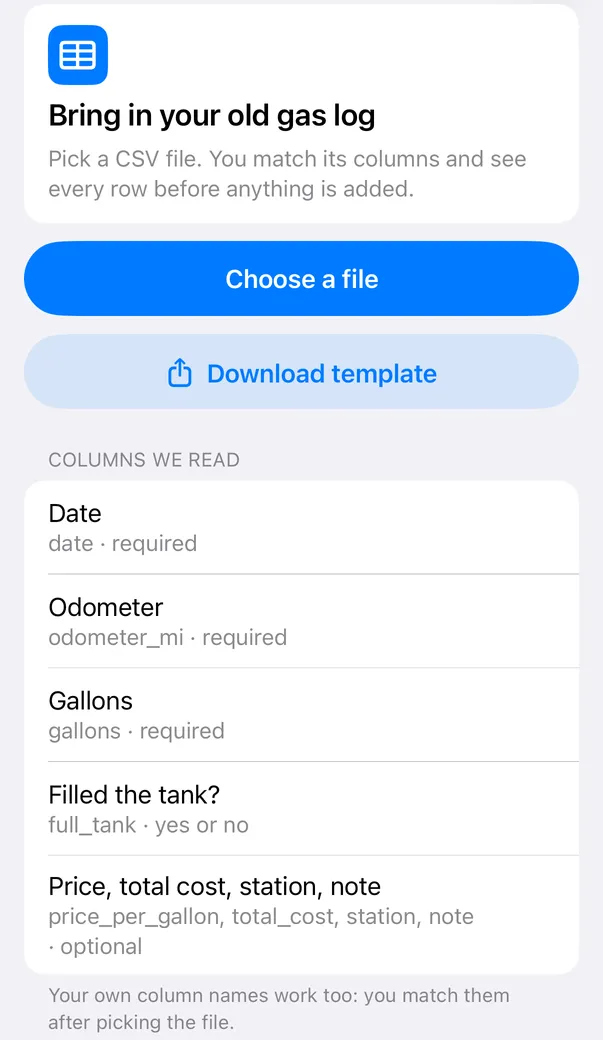
    The Import fill-ups screen: Choose a file, Download template, and Columns we read: Date, Odometer and Gallons required; Filled the tank? yes or no; price, total cost, station and note optional.
  3. Pick the car under Import into. Log older than the car in the app? Choose New vehicle.

  4. Check Date, Odometer and Gallons. Tap the word on the right to change a match.
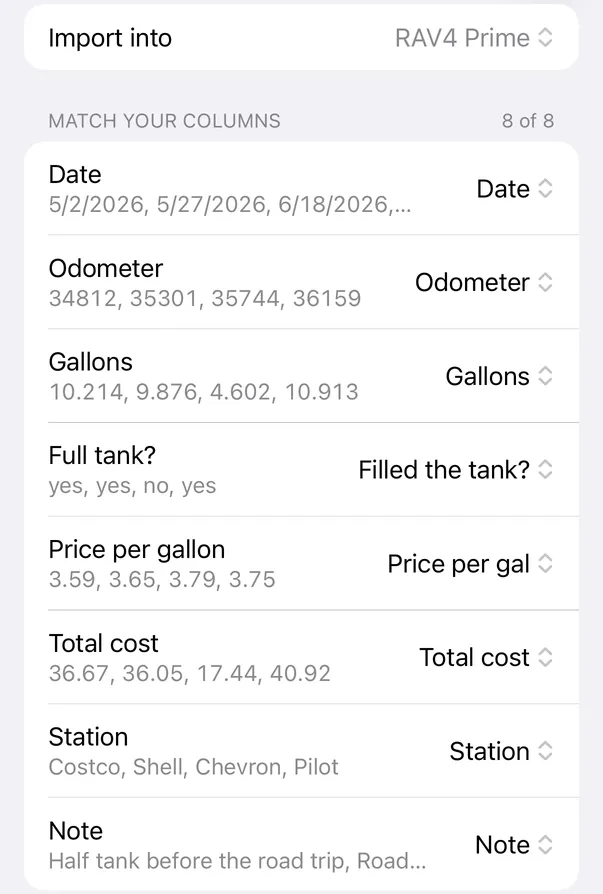
    Match your columns, 8 of 8: each column from the file with its first values, and the field it’s matched to: Date, Odometer, Gallons, Filled the tank?, Price per gal, Total cost, Station and Note.
    Sample data.
  5. Tap Import. Rows marked ✕ are skipped and say why.
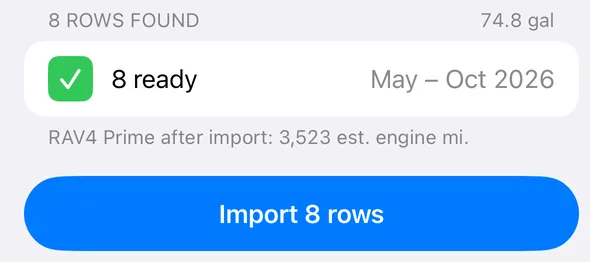
    8 rows found, 74.8 gallons: 8 ready, May to October 2026, and a blue Import 8 rows button.
  6. Wrong? Tap Undo straight away. Your fill-ups are in the Log tab.

If rows won’t import

What you seeWhat to do
“No date · skipped” on every row, or “Match a column to Date”Add a Date column with the year, or pick Date from the menu next to yours.
“Can’t read the date (3-Oct) · skipped”The date has no year. Show the year and save as CSV again.
“Can’t read the date (########)”The Date column was too narrow. Widen it and save again.
“No gallons · skipped”, or “Match a column to Gallons”Tap Don’t import next to your gallons column and choose Gallons.
Columns named Column 2, Column 3, or your titleDelete the title or blank rows above the names.
The file is greyed out in the file pickerIt’s an .xlsx or .numbers file. Save a CSV copy.
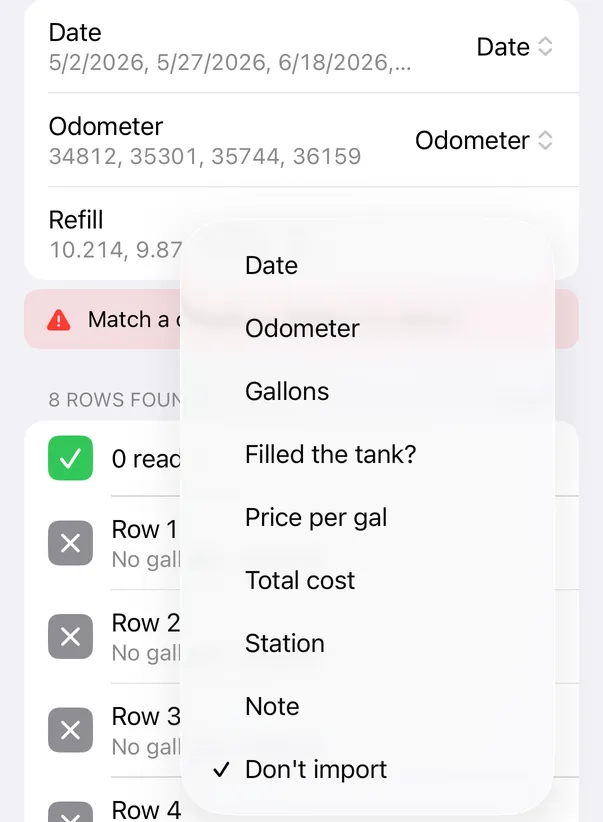
The menu next to a column named Refill, opened: Date, Odometer, Gallons, Filled the tank?, Price per gal, Total cost, Station, Note, and Don’t import, which is ticked.
Refill was set to Don’t import. Choosing Gallons makes all 8 rows ready.

Still stuck?

Email your spreadsheet to [email protected]. The Excel or Numbers file is fine. We’ll reply with what to change.

EngineMiles Support
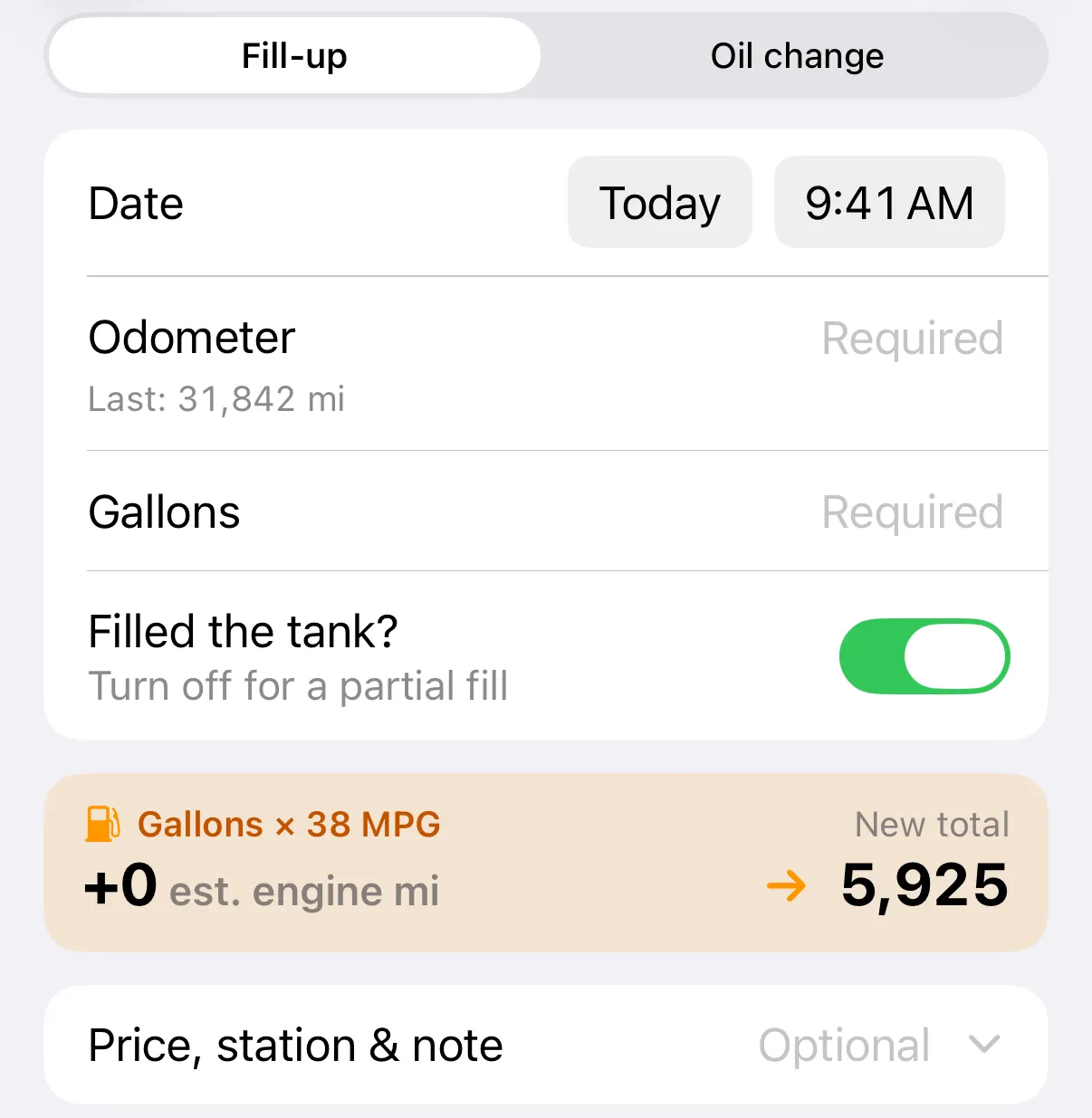
Check your file before you buy.

Anyone can open a file and see the full preview. Importing the rows is part of EngineMiles Pro.

Download on the App Store

Free download for iPhone. Pro is optional.